Getting Started
Understanding Framer Interface
The Framer interface is designed to help users build websites visually and efficiently.
Beginner
3 min read

Framer includes a visual editor that allows you to design, organize, and publish websites directly inside the browser.
Understanding the main parts of the editor is important for building websites efficiently and managing larger projects more easily.
This guide explains the core areas of the Framer interface and how each section helps during the design process.
Understanding the Interface
The Framer editor is divided into several main areas that work together while you build your website. These include the Canvas, Layers Panel, Properties Panel, Toolbar, and responsive Breakpoints.
Each part of the interface serves a different purpose and helps streamline the website creation workflow.
Canvas
The Canvas is the main workspace where you visually design your website pages. This is where you add elements, create layouts, resize sections, and arrange content.
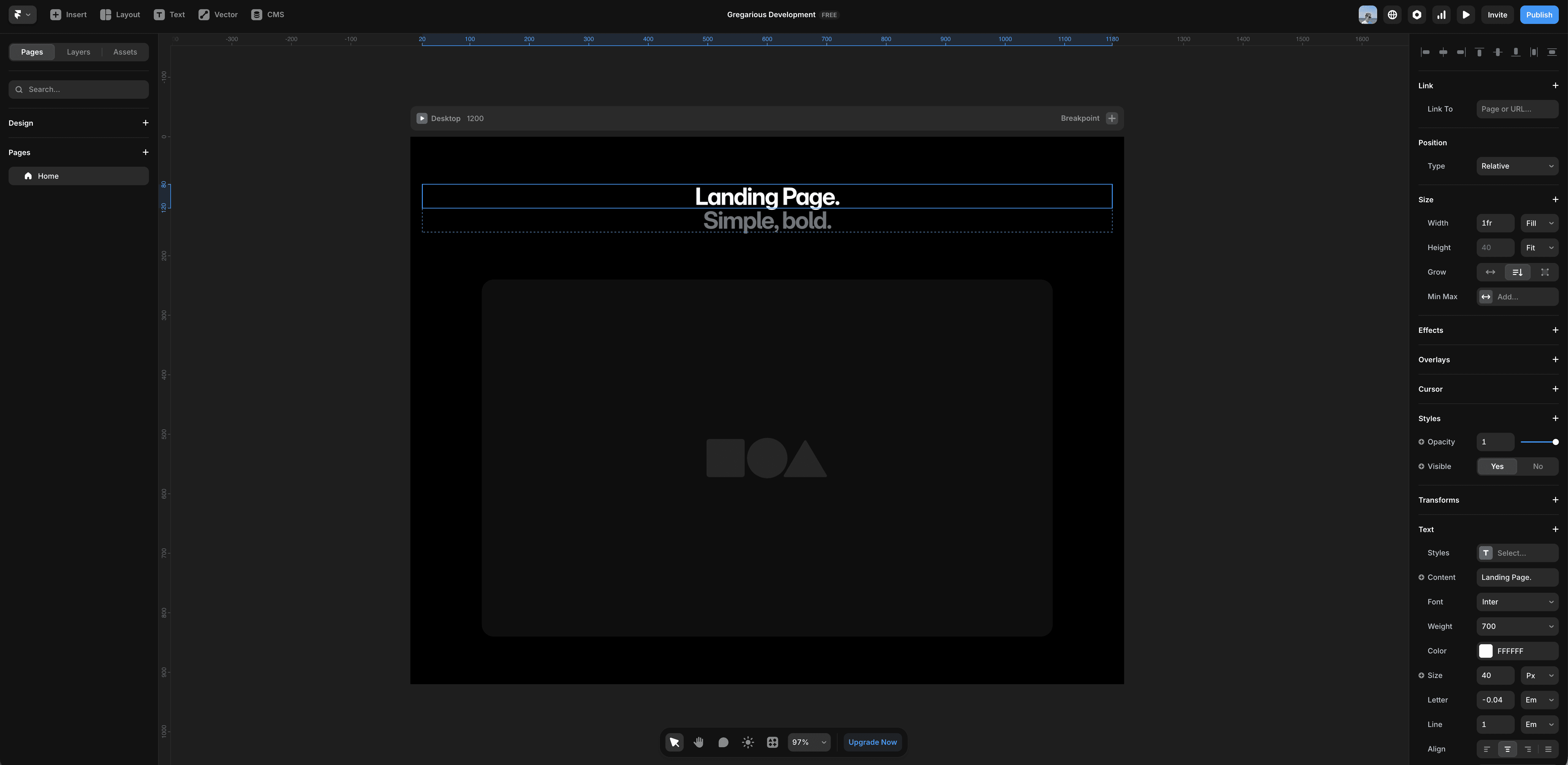
Most of your design work happens directly inside the Canvas. As you edit your project, changes appear in real time, allowing you to quickly test layouts and build responsive pages visually.
Layers Panel
The Layers Panel is located on the left side of the editor and displays the structure of your page. It shows sections, frames, components, text layers, images, and nested elements in an organized hierarchy.
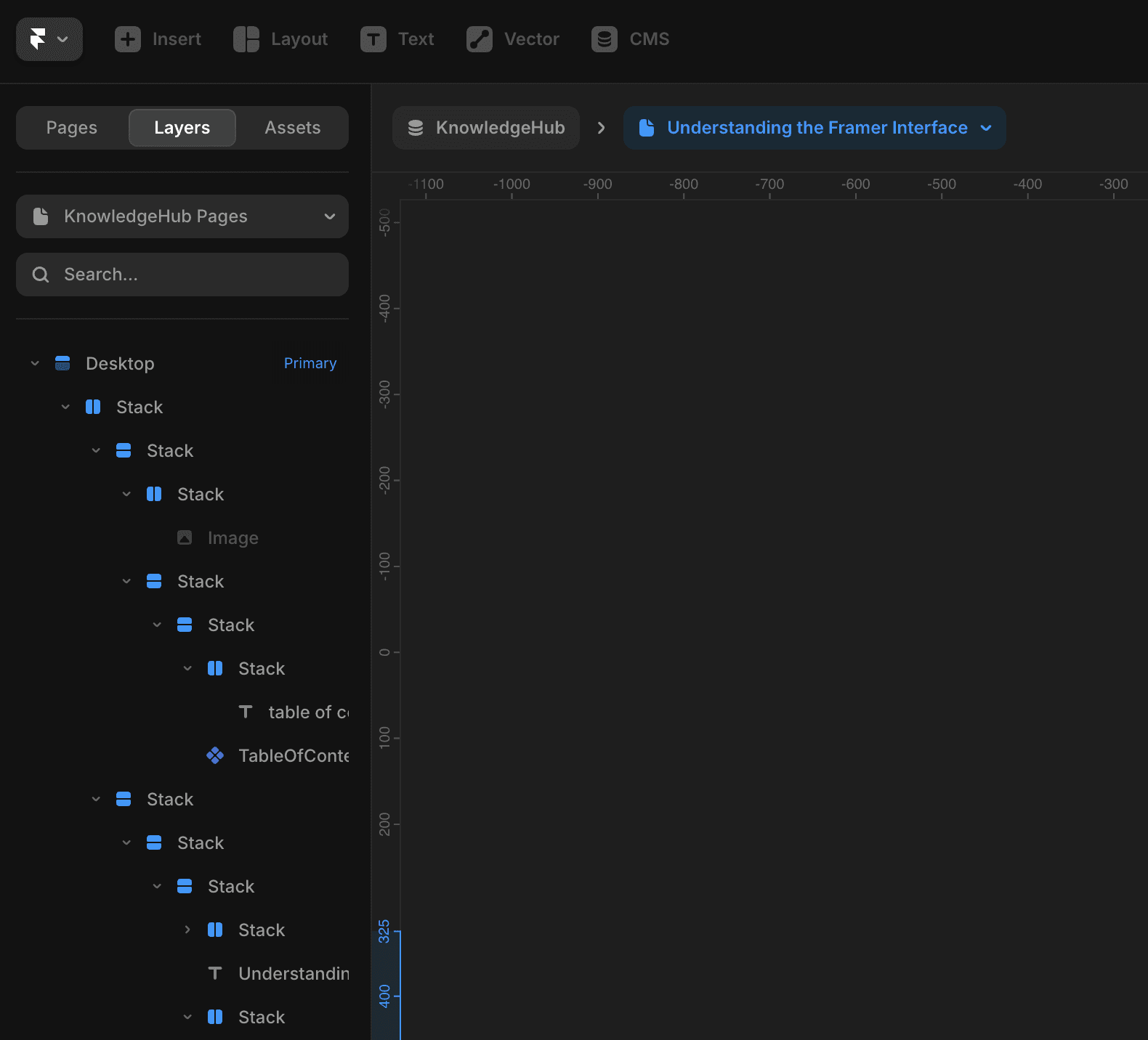
As projects grow larger, the Layers Panel becomes increasingly important for navigation and organization. Renaming layers clearly and grouping related elements helps keep projects easier to manage.
For example, names like Hero Section or Primary Button are much easier to understand than default layer names such as Frame 12.
Properties Panel
The Properties Panel appears on the right side of the editor and controls the settings of selected elements.
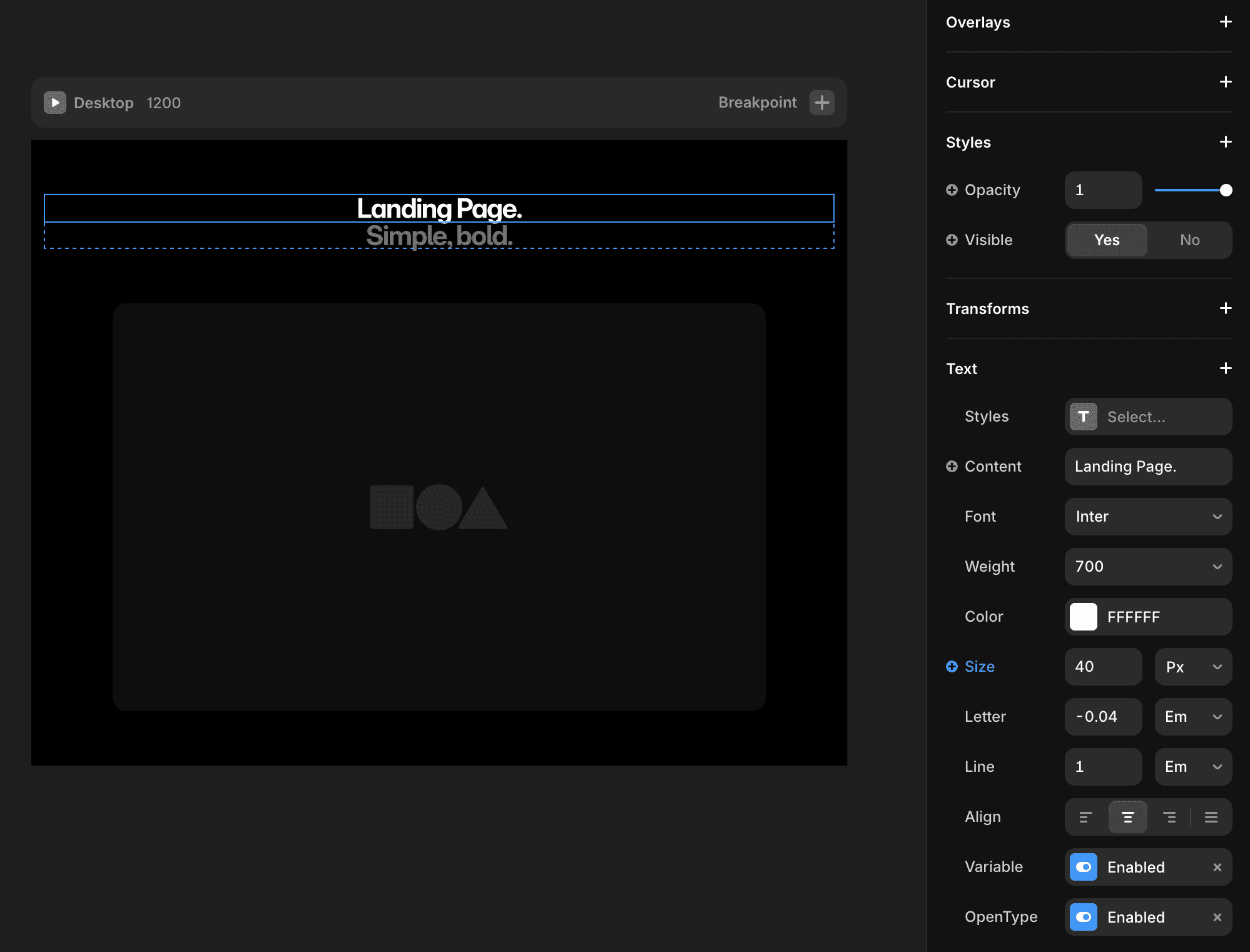
This is where you customize visual styling, spacing, layout behavior, positioning, responsiveness, and animations. The panel allows you to adjust nearly every aspect of an element without writing CSS manually.
It also includes responsive layout tools such as Auto Layout, alignment controls, sizing behavior, and breakpoint-specific settings that help websites adapt across devices.
Toolbar
The Toolbar is located at the top of the editor and contains commonly used actions for managing your website.
Important tools include Preview, Publish, Undo/Redo, and breakpoint switching.
The Preview button allows you to test responsiveness, animations, interactions, and navigation before publishing. Meanwhile, the Publish button makes your website live instantly using Framer hosting or a connected custom domain.
Undo and Redo tools are especially useful while experimenting with layouts or testing new design ideas.
Breakpoints
Breakpoints help optimize layouts for different screen sizes including desktop, tablet, and mobile devices.
Framer allows you to switch between breakpoints and customize layouts independently for each screen size. This helps improve usability and responsiveness across devices.
Responsive adjustments often include resizing text, reorganizing layouts, adjusting spacing, scaling images, and simplifying navigation for smaller screens.
Testing layouts across all breakpoints is an important part of modern website design.
Keeping Projects Organized
As websites become larger and more complex, maintaining organization becomes increasingly important.
Good workflow habits include renaming layers clearly, grouping related elements, keeping sections organized, using reusable components, and maintaining consistent spacing systems.
Well-structured projects are easier to edit, collaborate on, and scale over time.
Using Components
Reusable components help maintain consistency across your website while reducing repetitive work.
Common reusable components include navigation bars, buttons, cards, testimonials, and footers.
When components are updated, changes can apply across multiple pages automatically, helping teams work more efficiently.
Final Thoughts
The Framer editor is designed to simplify website creation through a visual and responsive workflow.
By understanding how the Canvas, Layers Panel, Properties Panel, Toolbar, and Breakpoints work together, you can design websites more efficiently and maintain cleaner project organization.
As you gain experience with the interface, building responsive and scalable websites becomes much faster and more intuitive.
Frequently Asked Questions
Where can I edit the settings of an element in Framer?
When you select an element on the canvas, its properties and settings appear in the right sidebar, where you can adjust layout, styling, interactions, and other options.
Where do I manage pages?
Pages are managed from the left sidebar.
Can I customize the interface?
Some panels can be collapsed or resized.
framerbaseio